
Help Center · Stories and clips
Story settings
In a story's Settings tab you decide how it behaves. Changes are saved automatically and apply at once. The only exception is the password, see below.
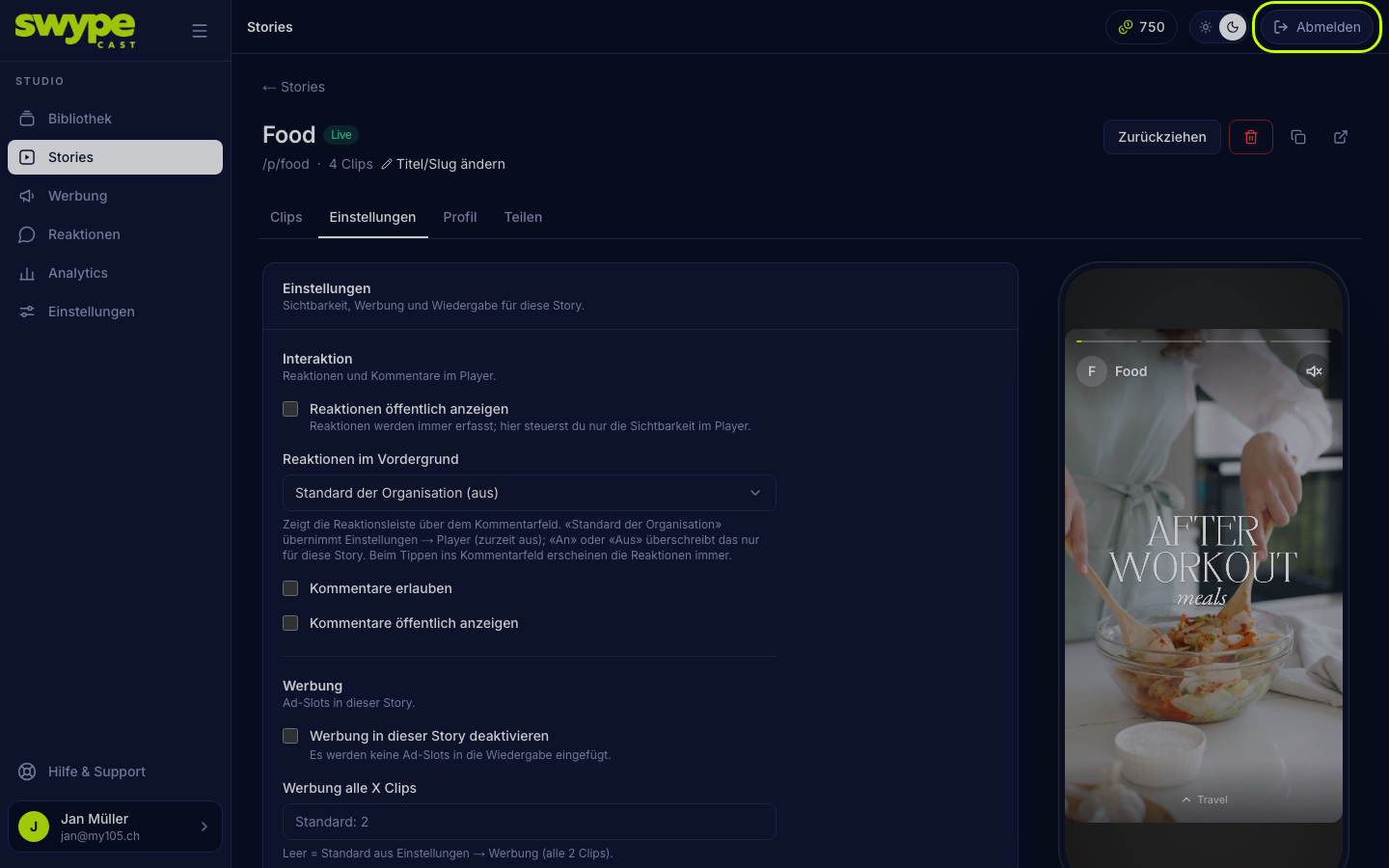
Interaction
- Show reactions publicly: viewers see the emoji counters. Reactions are always recorded.
- Reactions in the foreground: shows the reaction bar permanently above the comment field. Organisation default takes the setting from Settings → Player; On or Off applies to this story only. In the comments window the reactions are always there.
- Allow comments: viewers can comment anonymously. What happens to comments is set under Moderating comments.
- Show comments publicly: approved comments are visible to everyone.
Advertising
- By default the frequency from your organisation's Settings → Advertising applies.
- Ad every X clips: a value for this story only. Leave it empty for the organisation default.
- Disable ads in this story: no ads, whatever the organisation says.
An ad never comes after the last clip. If X is greater than or equal to the number of clips, the studio warns you.
Playback and sharing
- At the end of the story: the default is Start the next story. After the last clip the player automatically swipes to your organisation's next story; without another story it starts over. Alternatives are Start over (loop) or Show end screen ("Watch again" and "Next").
- Sound on by default: the player tries to start with sound. If the browser blocks that, it starts muted with a "Sound on" hint.
- Allow sharing: shows the share button in the player.
- Do not list in the row: the story does not appear in the embedded rows, is skipped in the feed, and the player does not swipe into it. Through its own link and QR code it stays reachable and plays on its own there. The same switch exists as an eye icon in the story list.
Access
- Password protection: only people who know the password can see the story. This also applies to links to single clips and when swiping through. Tick the box, enter a password of at least 4 characters and click Save access. This form deliberately does not save automatically, so a half-typed password never applies. The player then asks for it before starting.
Was this helpful?