
Your first story in ten minutes
A story is a sequence of short vertical clips, just like you know them from Instagram or TikTok, except it runs on your own website. Here is how you get from an empty studio to your first published story.
1. Get clips into the library
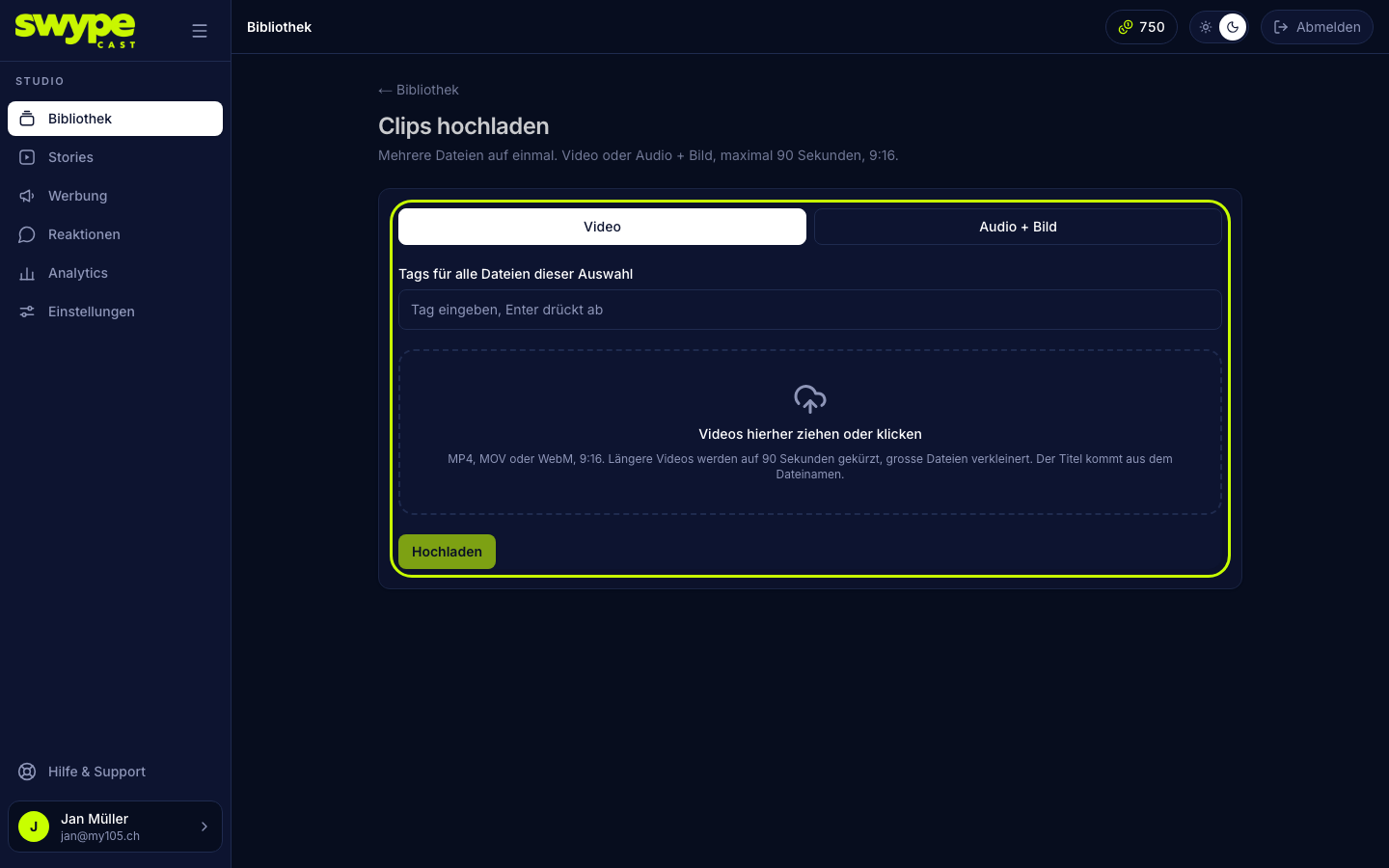
- Open Library and click Upload.
- Drag one or more videos into the field (portrait 9:16). A video longer than 90 seconds is cut to 90 seconds during the upload. Or switch to Audio + image for a soundtrack with a still picture.
- Click Upload and wait until every clip is done. The title comes from the file name; you can change it later.
No finished video at hand? Create a clip builds one right in the studio, see Building clips in the studio.
2. Create a story
- Open Stories and click New story.
- Enter a title. It produces the link name (the "slug"), which you can adjust.
- Click Create story.
3. Add and arrange clips
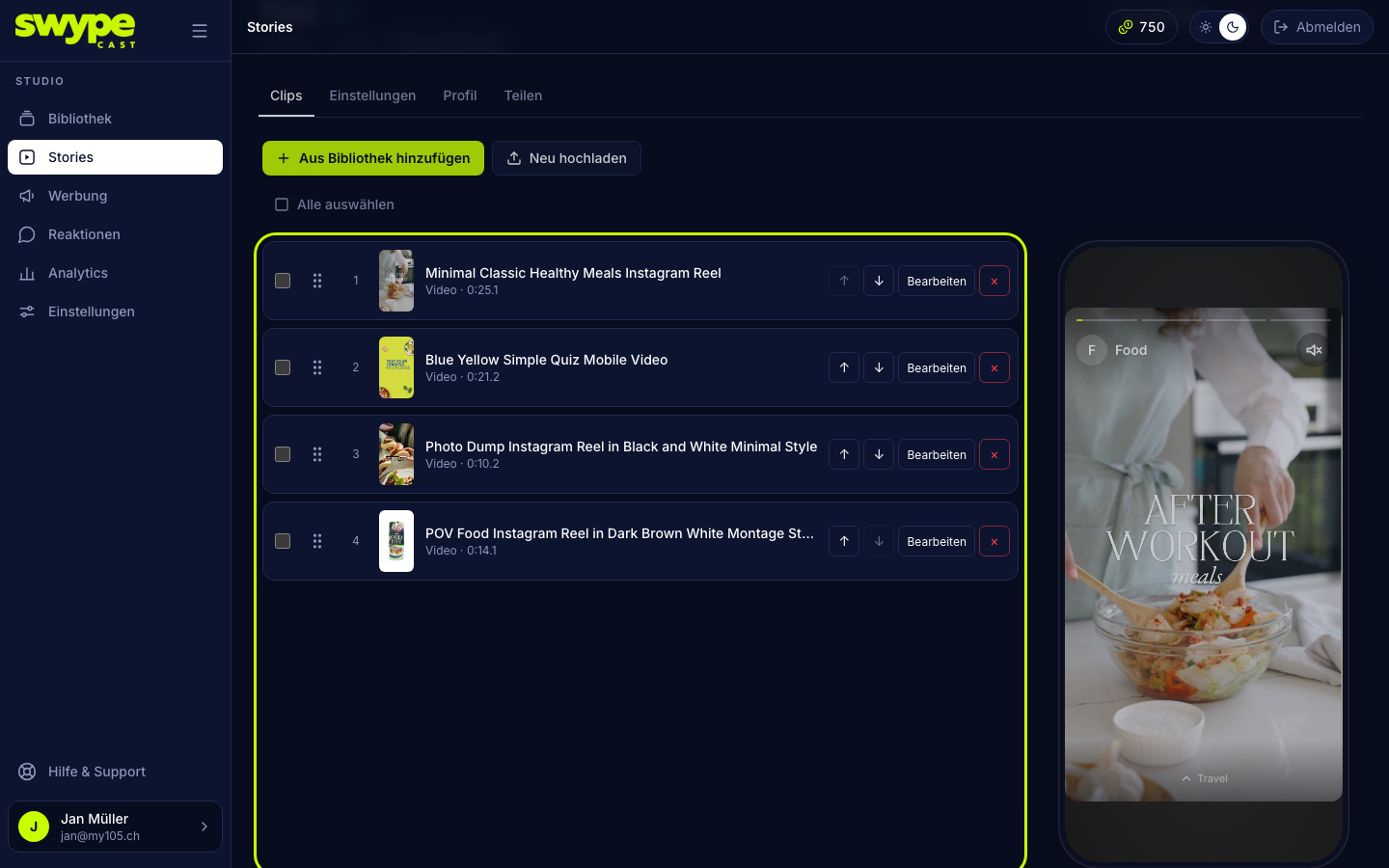
- In the Clips tab click Add from library, pick clips and confirm with add. Upload new uploads clips straight into this story.
- Arrange them by dragging the handle on the left, or with the arrows.
- On the right you see the preview in a phone frame, exactly as your viewer sees it.
4. Go live
Click Publish at the top right. The status next to the title changes from Draft to Live; only then is the story reachable under its link. Unpublish takes it offline again.
5. Share
In the Share tab you find the link (your-name.swypecast.com/story-name), the code to embed it, a QR code and, depending on your plan, an RSS feed. More under Publish and share.
Was this helpful?