
Help Center · Stories and clips
Publish and share
A story only becomes visible once it is Live. Until then you can build it in peace and check it in the preview.
Status of a story
- Draft: only you and your team see it, in the editor and the preview.
- Live: publicly reachable under its link and part of the story row when swiping.
At the top of the editor click Publish to go live and Unpublish to go back to draft. The bin deletes the story after a second confirmation; the clips stay in the library, while comments, reactions, answers and entries go with it. In the story list you can select several at once and delete them together. Next to them the link icon copies the link, and Open shows the story in a new tab (as a preview while it is a draft).
The Share tab
The Share tab has three tabs of its own. As long as the story is not live, a note reminds you that link, embed, QR code and feed only work after publishing.
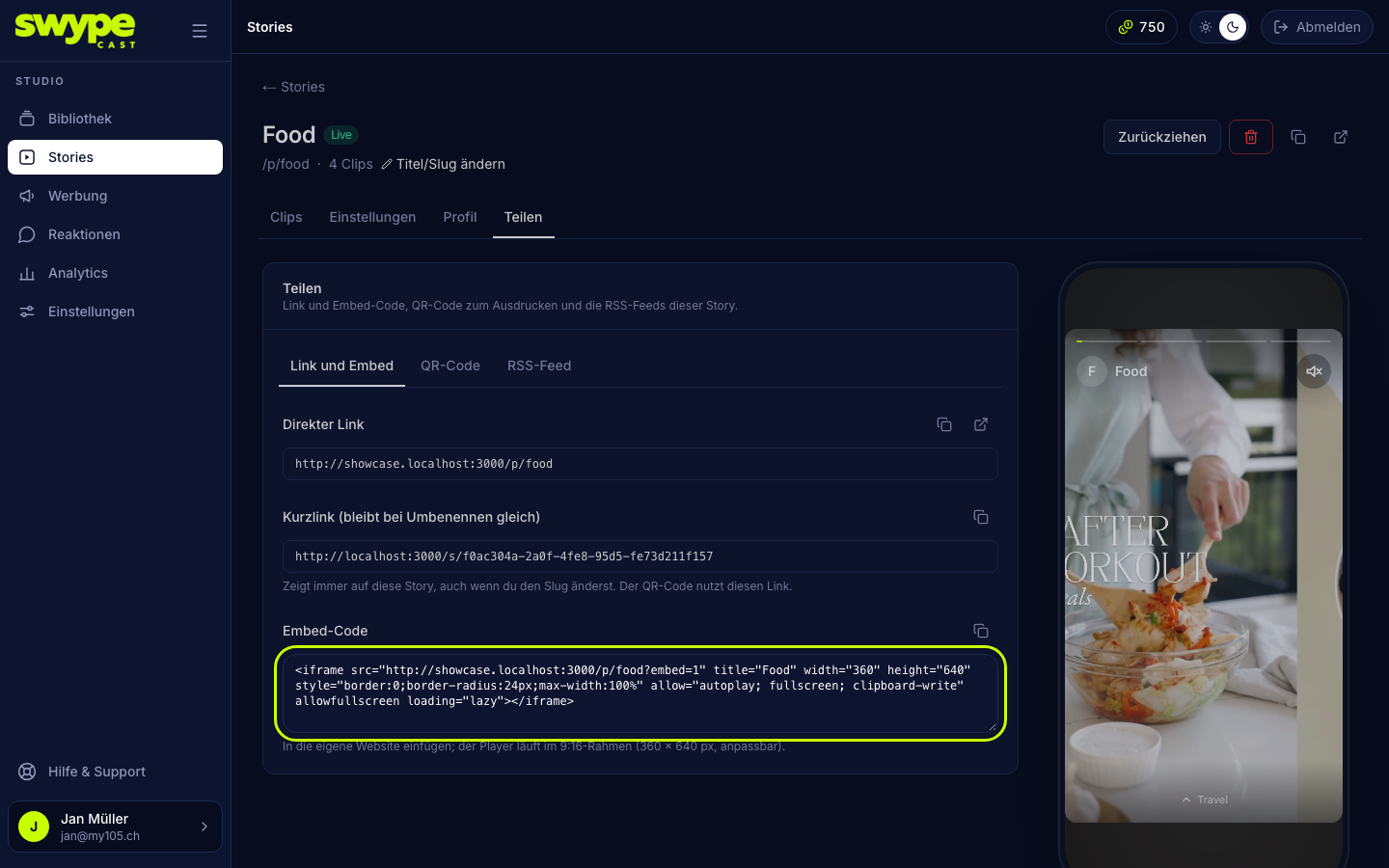
Link and embed
- Direct link, e.g.
your-name.swypecast.com/summer. Without your own subdomain it isswypecast.com/p/summer. - Short link: always points to this story, even if you change the slug later. The QR code uses this link.
- Embed code: a small piece of HTML that places the story on your website, see Embedding a story on your website.
Each field has a copy icon next to it.
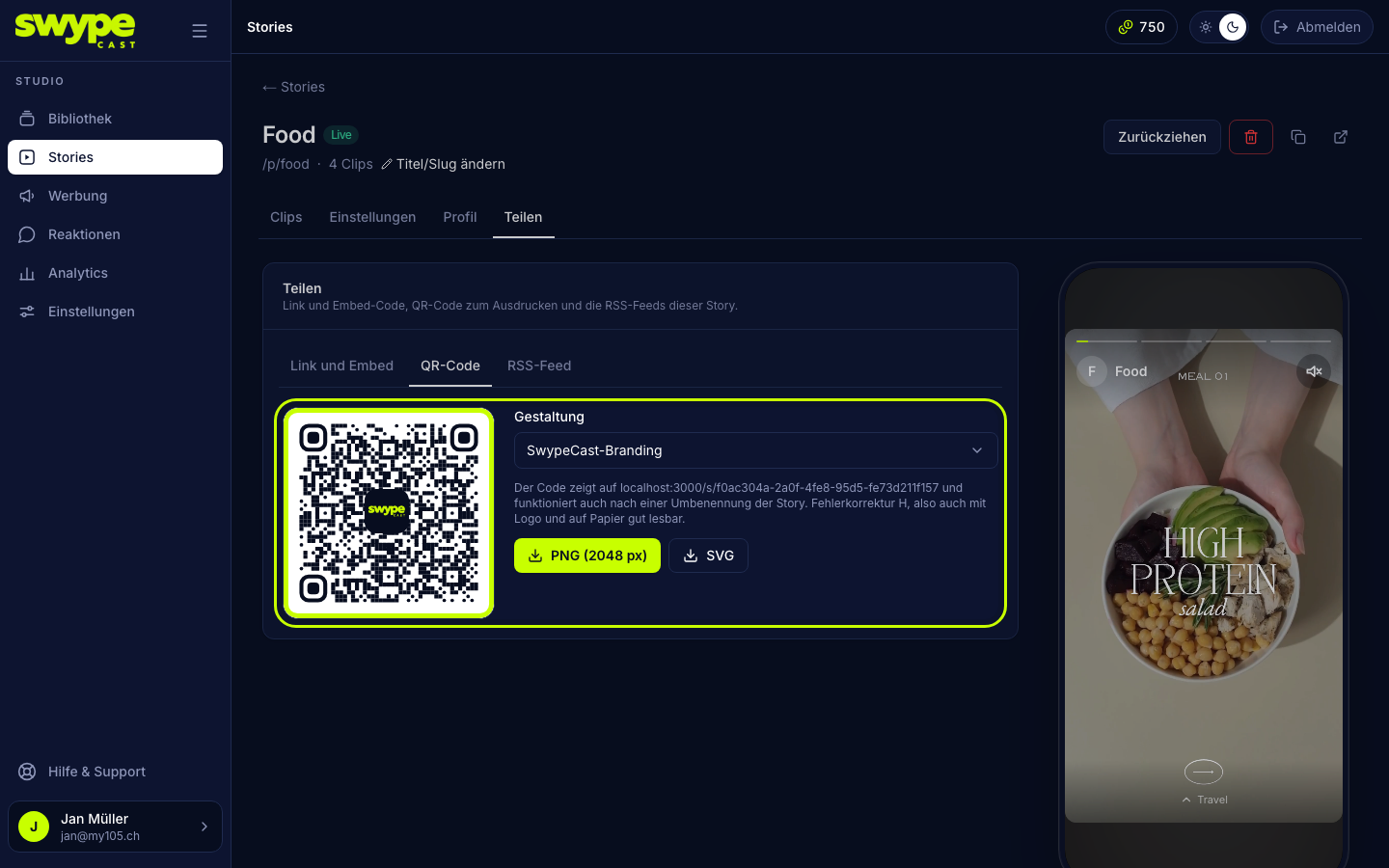
QR code
A QR code to print, for example on posters, table cards or packaging. Download it as PNG (2048 px) or as SVG. Under Design you choose SwypeCast branding, your own image (story avatar, otherwise the organisation's logo) or a neutral code without a logo. Your own branding comes with the Pro plan; until then the code carries the SwypeCast mark.
RSS feed
From the Pro plan on, every story has its own feed, as standard RSS and in the Audiospace format. With Exclude other stories from the feed the feed contains only this story; the address stays the same.
Link to a specific clip
The player has a share button (if you allowed sharing). It shares a link that starts right at this clip, handy for pointing to an excerpt. Such links show the clip's thumbnail in messengers and social networks.
Sharing the whole row
To share all stories together rather than one, open Stories and the Share & embed tab. There you find the link to your address, a QR code for the row, a feed across all stories and ready-made embeds as tiles or round images.
Preview
The phone on the right of the editor shows the story as viewers see it, even as a draft.