
Send a support request
If the Help Center has no answer, or something does not work, write to us directly. We reply by email, and you also see the whole conversation in the Help Center.
Where to find it
- In the Help Center top right via Support, or directly at swypecast.com/help/support.
- In the studio at the bottom of the sidebar via Help & Support into the Help Center, then Support.
Support is open to customers. If you are not signed in, the page first shows Sign in and Create account. After signing in you come back to the support page.
Send a request
- Enter a short Subject, for example "Video stops at 90 %".
- Pick the Category: Question, Problem / bug, Billing, Feature request or Other.
- Under Your message, describe what you wanted to do, what happened, and in which story or with which clip.
- Add an Attachment if needed: an image, a PDF or an MP4 up to 10 MB. A screenshot often says more than a paragraph.
- Click Send request.
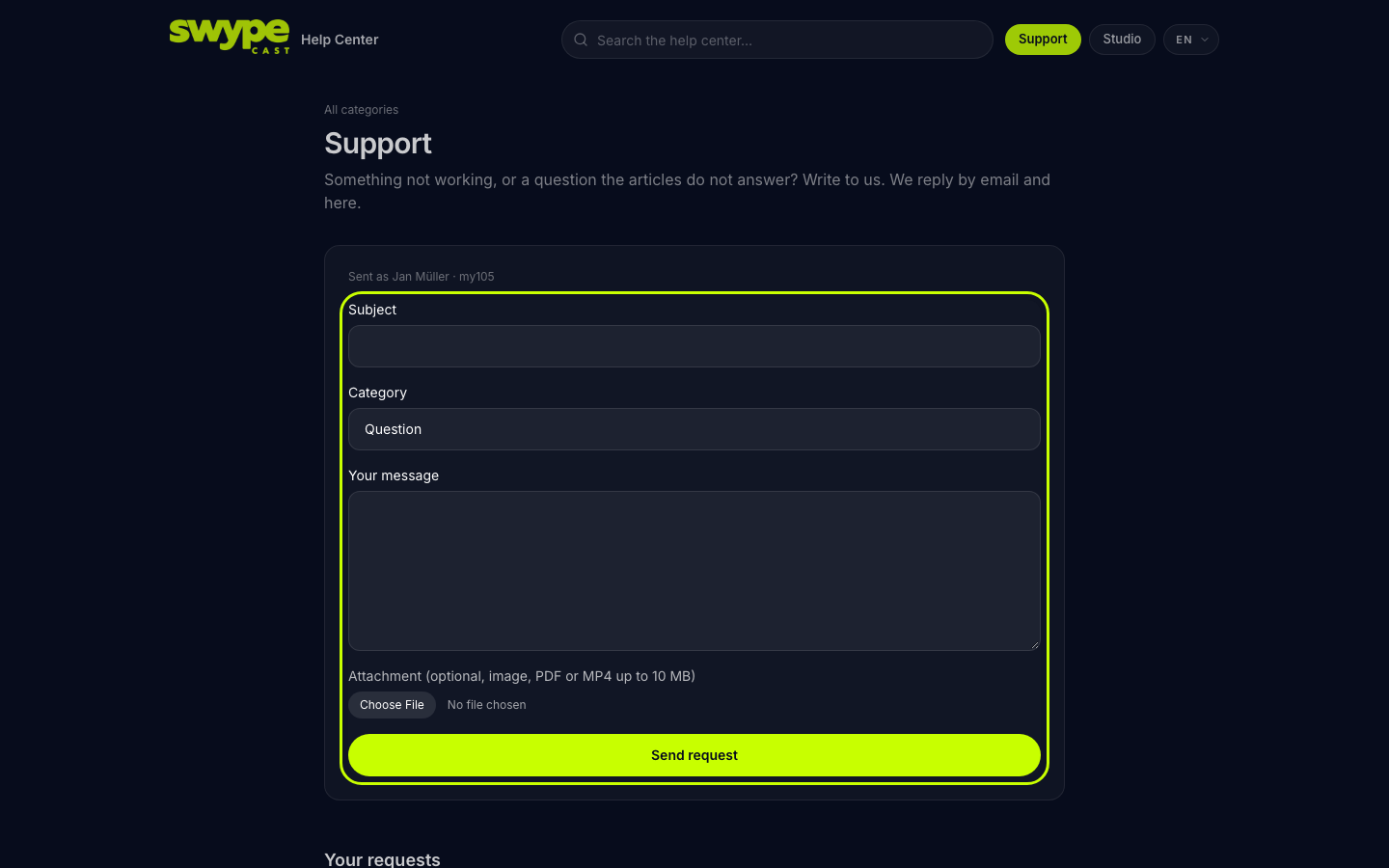
Above the form it says who you are sending as: your name and your organisation. That way we know right away which studio it is about, and you do not have to explain.
Your requests
Below the form you find Your requests: all requests of your organisation with number, subject, status and date of the last message. The status is New, In progress or Done.
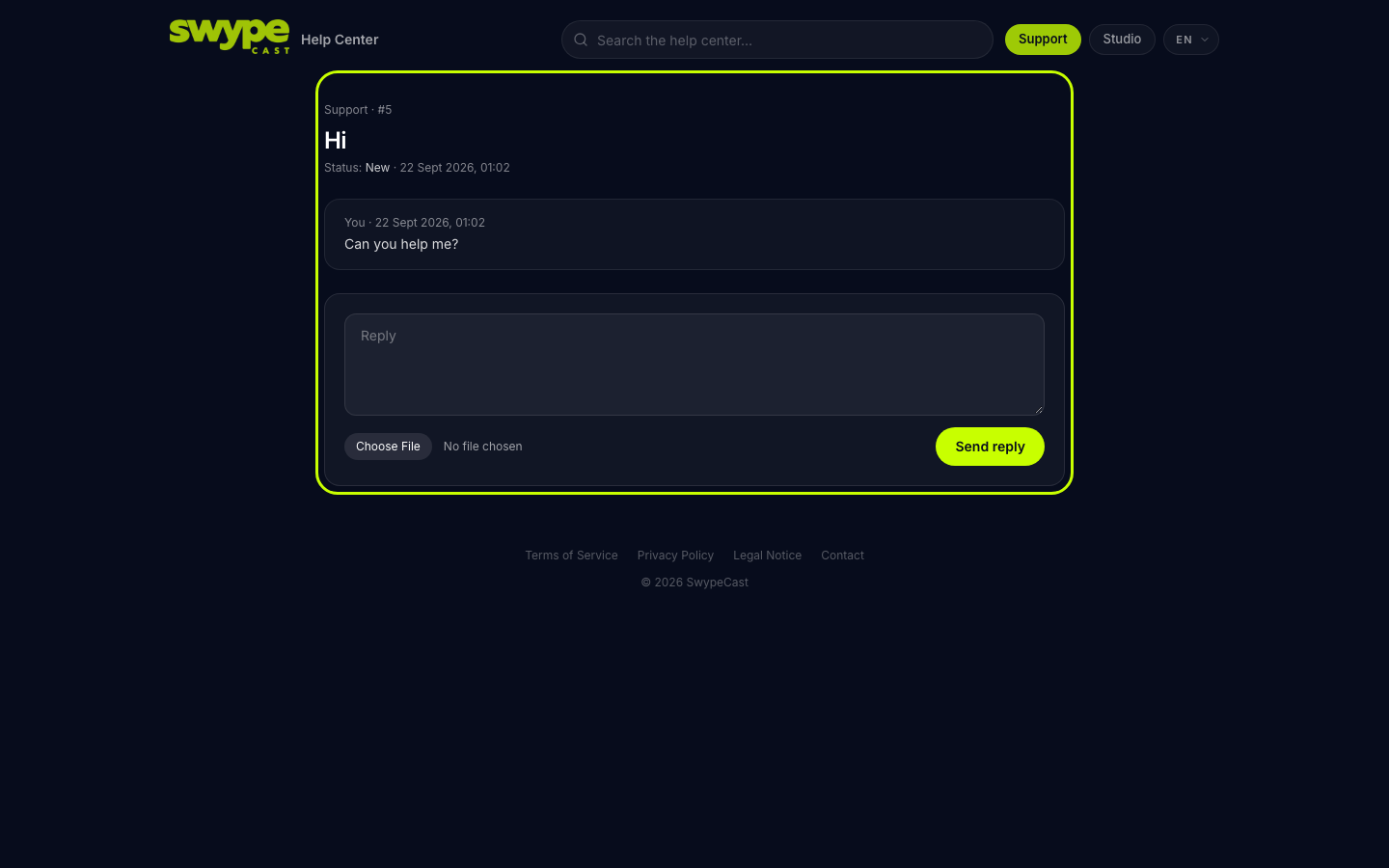
A click opens the conversation. There you see every message from you and from SwypeCast, and you can follow up with Reply and Send reply, also with a new attachment. If you reply to a request that is done, it goes back to In progress.
Which plan gets which support
All plans include the Help Center with support requests. The Business plan also gives you a personal contact person.
Search first
The Help Center often answers faster: the search at the top finds articles by title and text. Below each article you can tell us with Was this helpful? whether it helped.