
Create a campaign
A campaign defines when, where and how often creatives run. You need at least one finished creative and one story.
Step by step
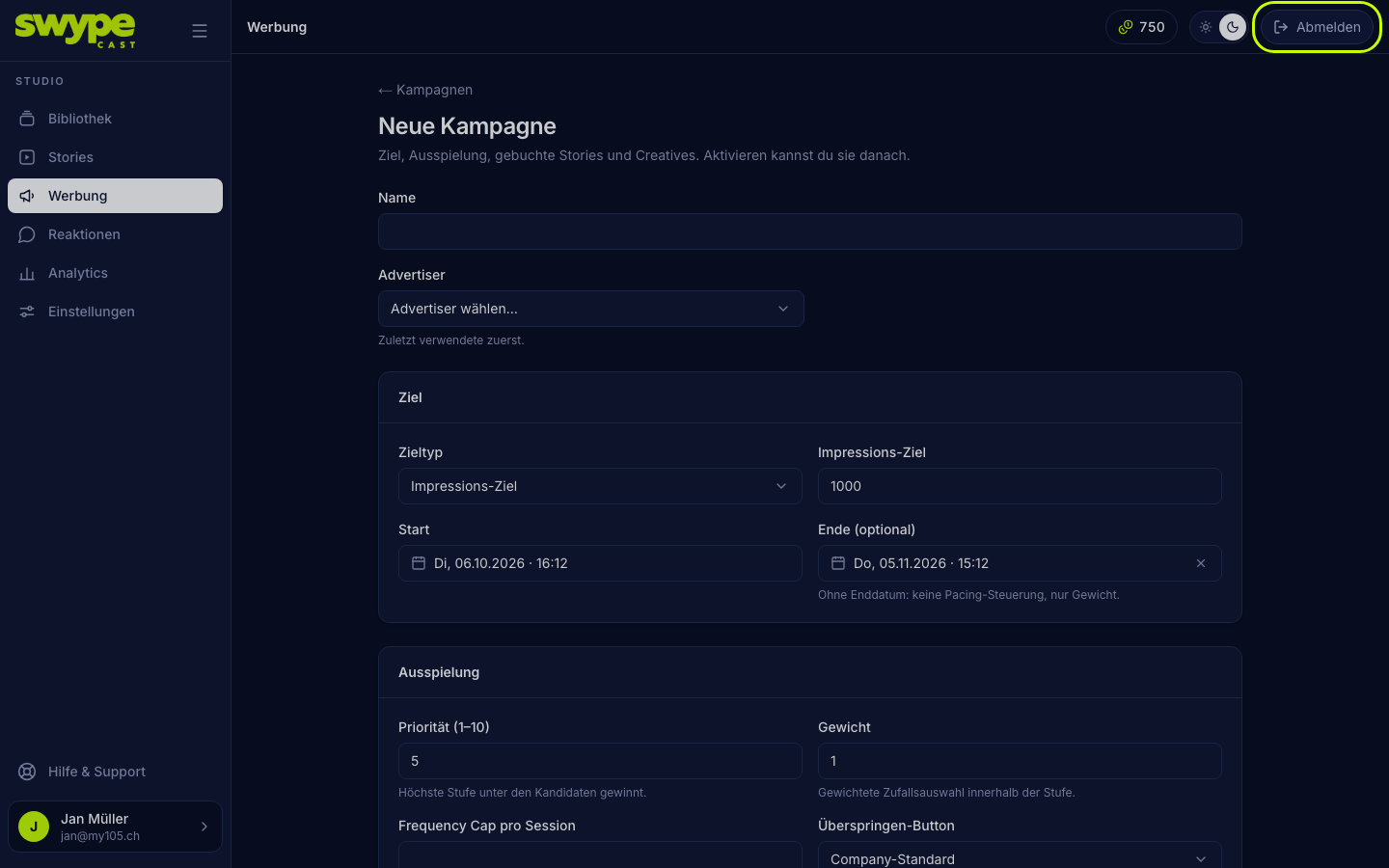
- Open Advertising and click New campaign.
- Enter a name and choose the advertiser.
- Under Goal, choose the goal type and set start and end. Outside the run time nothing plays.
- Under Delivery, set priority, weight, frequency cap and skip button.
- Under Booked stories, tick the stories the campaign may run in, or All stories.
- Under Creatives, pick one or more, each with a weight. The creatives of the chosen advertiser appear.
- Click Create campaign.
The fields
- Impression goal: how many ads should be shown in total. Once the goal is reached, the campaign stops by itself. The end date is optional here; without an end date there is no pacing, only the weight counts.
- Run time (even rotation): the campaign runs from start to end, without an impression goal. The end date is required.
- Priority (1–10): among several matching campaigns the highest level wins.
- Weight: decides within the same level by weighted draw.
- Frequency cap per session: how often the same person sees the campaign at most in one session. Empty means no limit.
- Skip button: company default, immediately, after X seconds or never.
- Forecast: below the booked stories you see how many ad slots they had in the last 14 days. If the goal is unlikely to be reached, the note turns red.
- Creative weight: two creatives with weights 2 and 1 run at a 2:1 ratio.
Activate and control
A new campaign starts as a draft and opens right away. At the top the status bar shows status, pacing and delivered impressions:
- Activate requires at least one booked story and one creative. From then on the campaign runs within its run time until the goal is reached.
- Pause stops it for now, End closes it. You bring an ended campaign back with Reactivate as draft.
- Delete removes the campaign together with its delivery statistics.
Changes to an existing campaign save automatically. The table Delivery per story shows ad slots, decisions, impressions and fill rate per story. At the top right, Analytics, CSV and PDF report lead to the figures for the whole run time.
The pacing badge
In the campaign list a badge shows whether a campaign with an impression goal and an end date is on track:
- On track (green): actual and target are at most 10 % apart.
- Behind (red): less than 90 % of the target. SwypeCast now prefers the campaign. Check that enough stories are booked and that they have viewers.
- Ahead (orange): more than 110 % of the target. SwypeCast slows the campaign down.
Next to it you see the progress towards the goal, the run time and the days left.
Search and filter
Above the list you search by campaign or advertiser and filter by status: active, planned, expired, paused, draft. With the checkboxes you delete several campaigns at once.
When a campaign ends
Fulfilled and expired campaigns stop being served immediately. The daily wrap-up then sets them to Ended.