
Create a creative
A creative is the ad clip: a video or audio + image in 9:16 portrait format, at most 90 seconds, with an optional button. Creatives live in their own library under Advertising → Creatives, separate from your content clips.
Upload
- Open Advertising → Creatives and click Upload creative.
- Choose the type: Video or Audio + image.
- Enter a title and choose the advertiser. Recently used ones are at the top; + Create new advertiser… adds one right here.
- Enter the landing URL, the page the ad leads to. It is required.
- Optional: tags, so you can filter creatives later.
- Pick the file (or audio and image) and click Upload.
After the upload the creative opens. In the list it shows Processing first, then Ready.
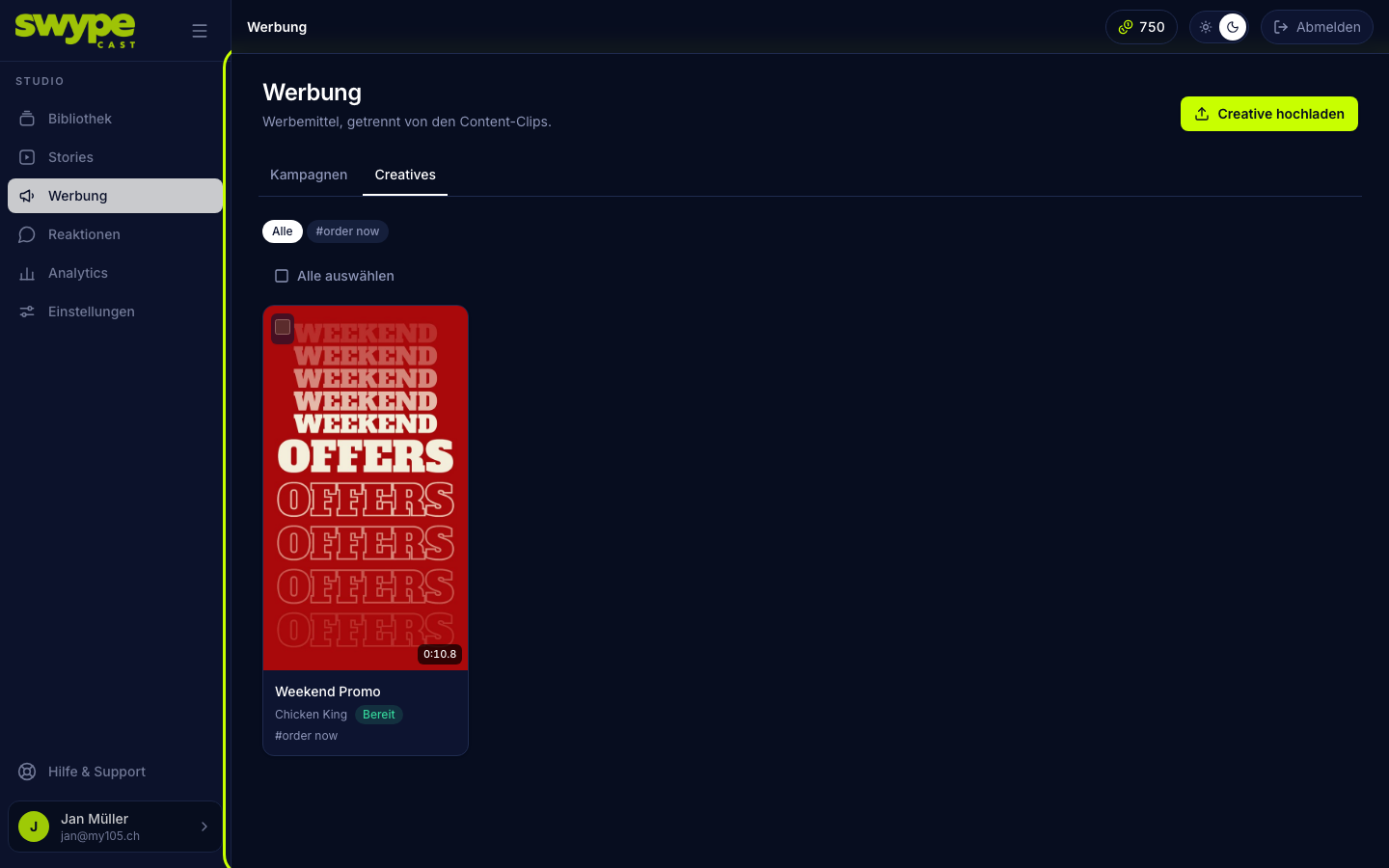
Edit a creative
Clicking a creative opens Edit creative. You change title, advertiser, landing URL and tags right there; everything saves automatically.
Button in the ad
As with clips, you can set up a button in the creative: label, link, background and text colour, position (bottom, centre, top). Without a button the ad shows none; there is no automatic "Learn more".
Preview
On the right you see the creative as an ad in the real player, with label, advertiser and skip button. The preview does not count impressions.
Replace media
Is a campaign already running and the client sends a new video? Click Replace video under the preview (for audio + image: Replace audio or Replace image). The new file replaces the old one. The campaign's impressions and pacing stay; the next ad already shows the new media.
Delete
- One at a time: Delete in the creative. The studio shows you which campaigns use the creative; it is removed from them when you delete it.
- Several: tick them in the list, Delete, confirm.